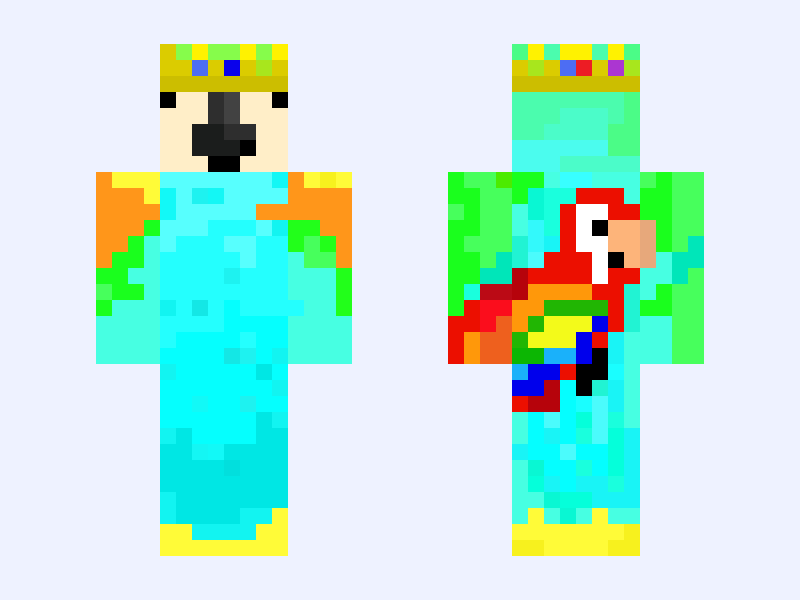
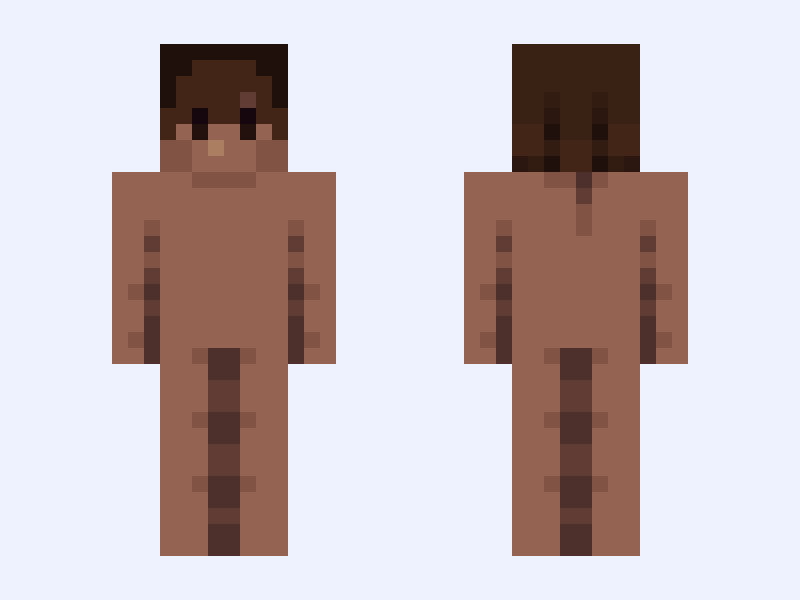

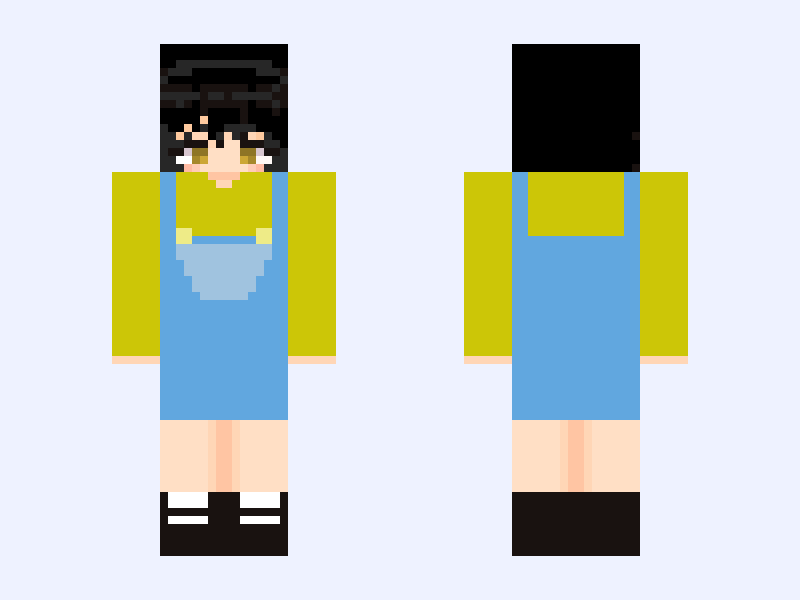
This is the skin file you download: a 64×64 PNG texture laid out in the standard Minecraft skin format.
I GOT A WATERMARK NOW (Tutorial) Minecraft Skin
About this skin
Okay if you was to save this skin you will see a water mark thats says FAYE! its pink and blue Im bad at explaining but imma try my best (Tutorial) Okay First take a skin ( I recommend A Steve Skin) make it fully one color like the whole skin one color ( A color that you don’t want to use for your water mark ) Then import that skin into ibisPaint X Put your watermark that doesn’t have the skin (this is why we made the skin one color) Make your Watermark then erase the skin part not the watermark( common sense but there a reason there instructions on shampoo ) Then save that skin to your phone make sure to press transparent when saving Then add that watermark to a skin (I prefer a base skin) then set that skin as a template. (PLEASE ASK QUESTIONS IF YOU NEED HELP!)
Skin details
- Model
- Slim (Alex, 3px arms)
- Texture size
- 64×64 pixels
- File type
- PNG with transparency
- Likes
- 10
- Comments
- 3
- Added
- September 17, 2026
How to use this skin in Minecraft Java Edition
- Select Download Skin to save the PNG file.
- Open the Minecraft Launcher and go to Skins.
- Choose New Skin and select the Slim player model.
- Browse to the downloaded PNG, then select Save & Use.
How to use this skin in Minecraft Bedrock Edition
- Select Download Skin to save the PNG file.
- Open Minecraft and go to the Dressing Room.
- Under Classic Skins, choose Import, then Choose New Skin.
- Select the PNG and pick the Slim model.
![Null [~{Ascendants: Chapter 2}~] Minecraft skin, classic model, front and back view](/assets/image/skins/null-ascendants-chapter-2.png)