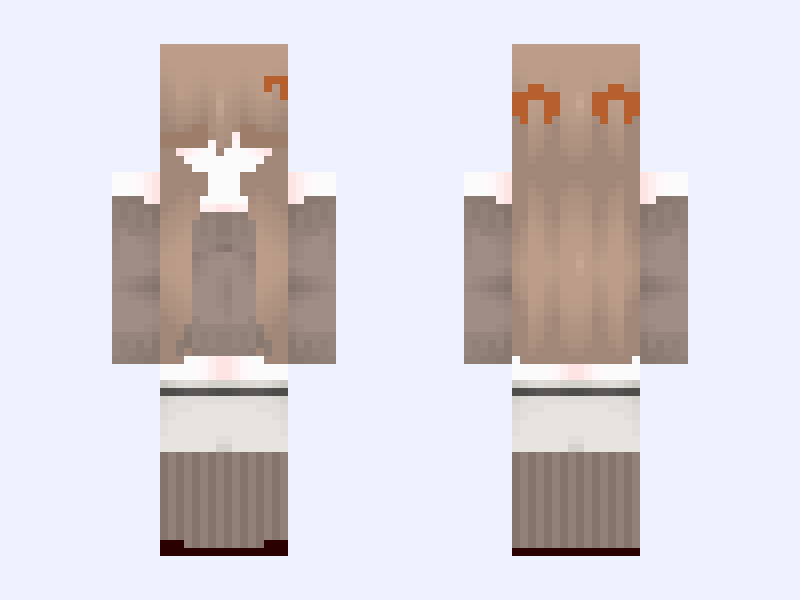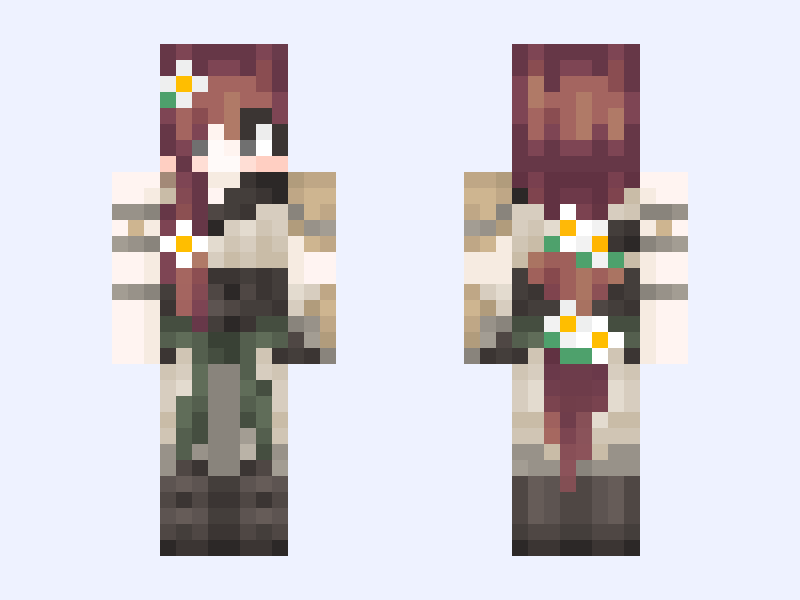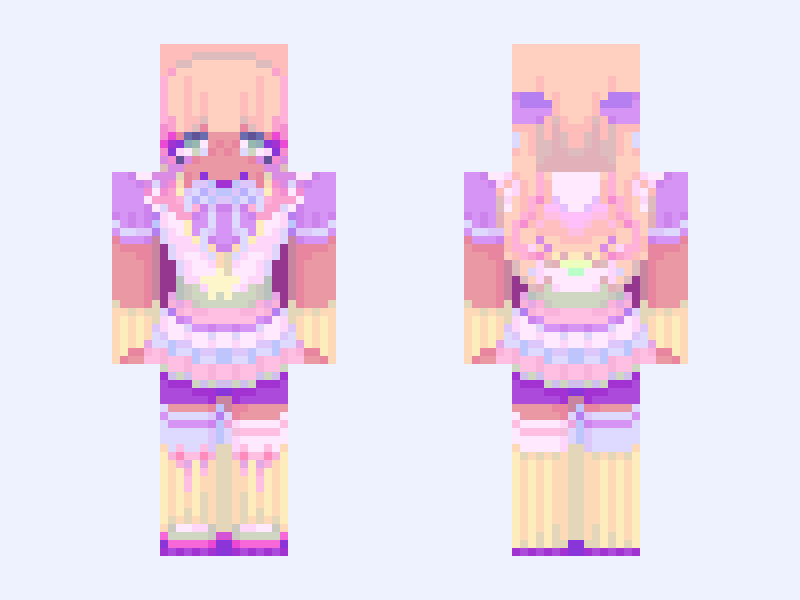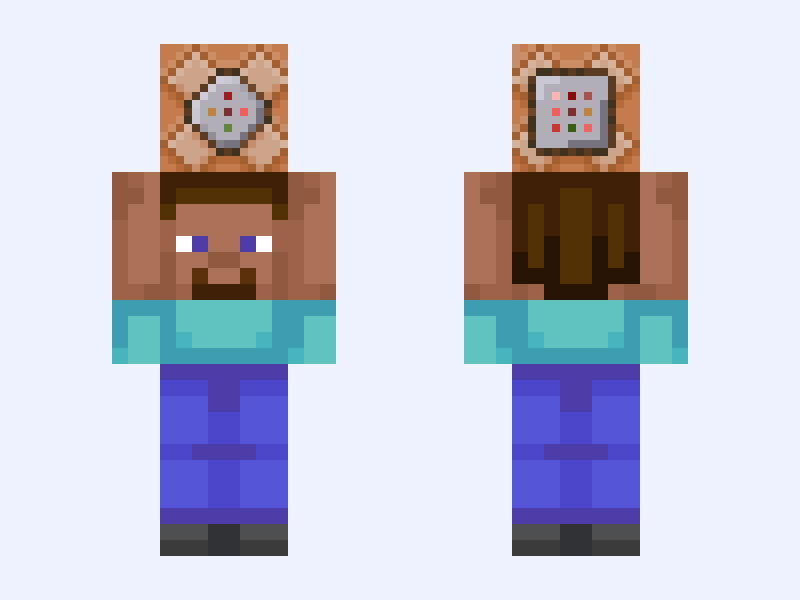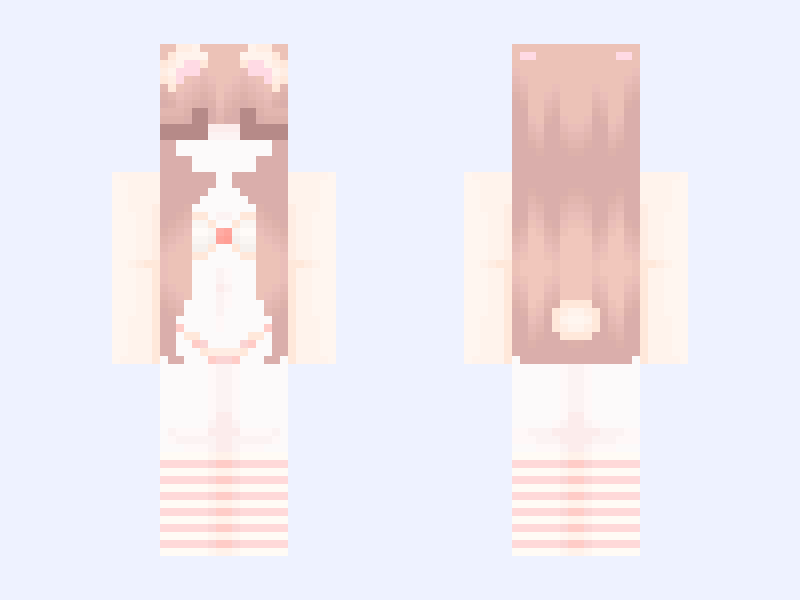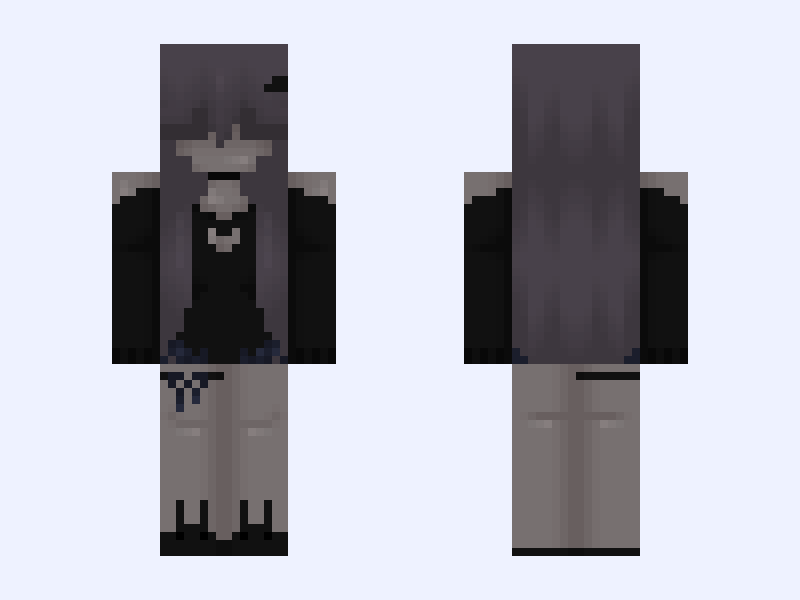
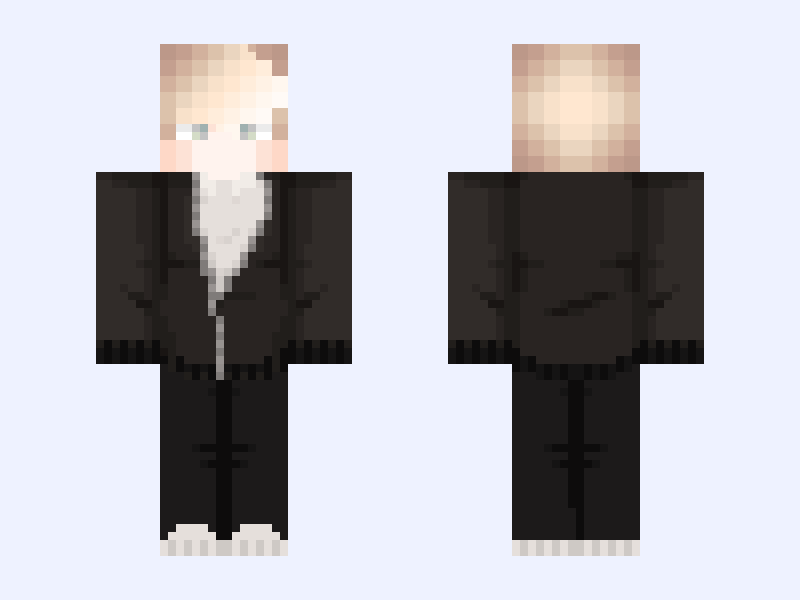
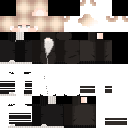
This is the skin file you download: a 128×128 HD PNG texture laid out in the standard Minecraft skin format.
something chill 🪦 Minecraft Skin
Classic
128×128 HD
18 likes
1 comments
Download Skin
About this skin
———————————— Outfit credit: @bored Hair: mine don’t use ——————————————- Age: 21 Bday: 6/8 Fav colors: navy, green, black I have one golden retriever named honey We got her at a rescue :) she’s 5 now. I’ve been going to college so I’ve been barely able to come on. I usually come back on to check in.. Personality: loyal and nice 🤙✨ ‧̍̊·̊‧̥°̩̥˚̩̩̥͙°̩̥‧̥·̊‧̍̊ ♡ °̩̥˚̩̩̥͙°̩̥ ·͙*̩̩͙˚̩̥̩̥*̩̩̥͙·̩̩̥͙*̩̩̥͙˚̩̥̩̥*̩̩͙‧͙ °̩̥˚̩̩̥͙°̩̥ ♡ ‧̍̊·̊‧̥°̩̥˚̩̩̥͙°̩̥‧̥·̊‧̍̊ My girl: @JustScarlet 💕 ‧̍̊·̊‧̥°̩̥˚̩̩̥͙°̩̥‧̥·̊‧̍̊ ♡ °̩̥˚̩̩̥͙°̩̥ ·͙*̩̩͙˚̩̥̩̥*̩̩̥͙·̩̩̥͙*̩̩̥͙˚̩̥̩̥*̩̩͙‧͙ °̩̥˚̩̩̥͙°̩̥ ♡ ‧̍̊·̊‧̥°̩̥˚̩̩̥͙°̩̥‧̥·̊‧̍̊
Skin details
- Model
- Classic (Steve, 4px arms)
- Texture size
- 128×128 HD pixels
- File type
- PNG with transparency
- Likes
- 18
- Comments
- 1
- Added
- September 8, 2026
How to use this skin in Minecraft Java Edition
- Select Download Skin to save the PNG file.
- Open the Minecraft Launcher and go to Skins.
- Choose New Skin and select the Classic player model.
- Browse to the downloaded PNG, then select Save & Use.
How to use this skin in Minecraft Bedrock Edition
- Select Download Skin to save the PNG file.
- Open Minecraft and go to the Dressing Room.
- Under Classic Skins, choose Import, then Choose New Skin.
- Select the PNG and pick the Classic model.