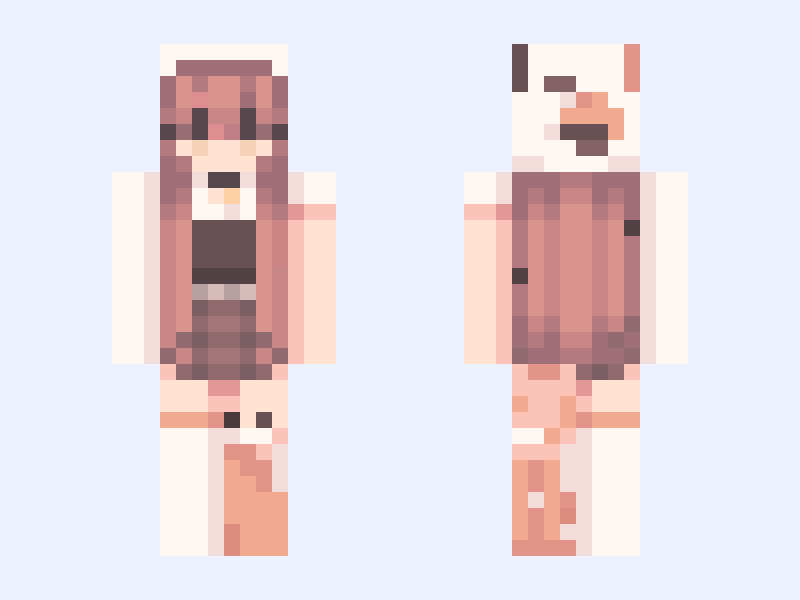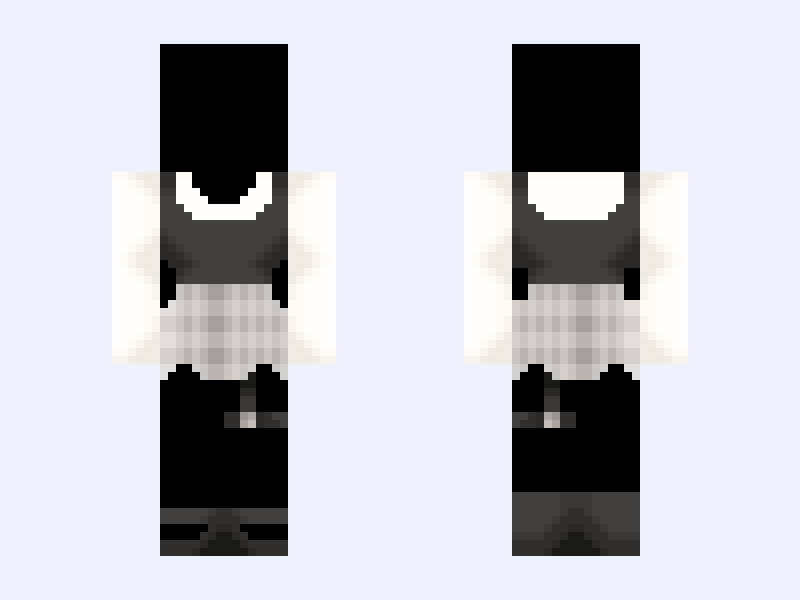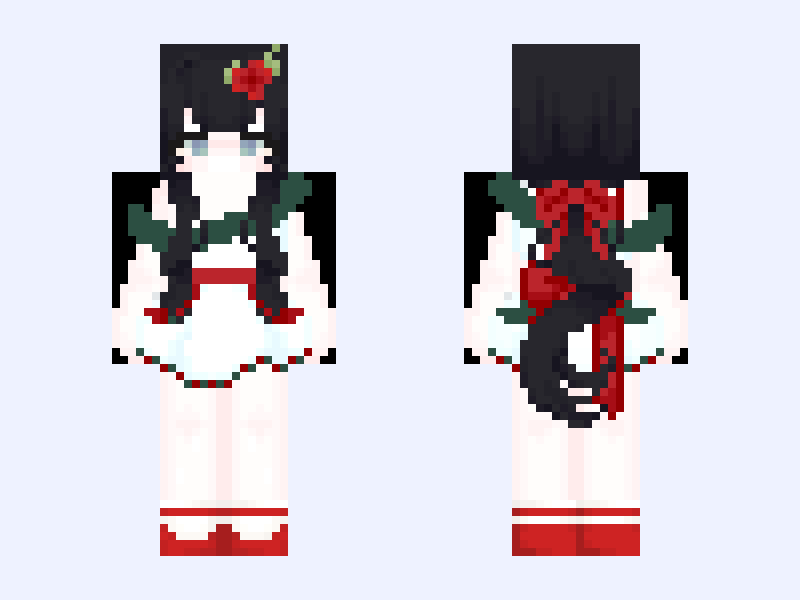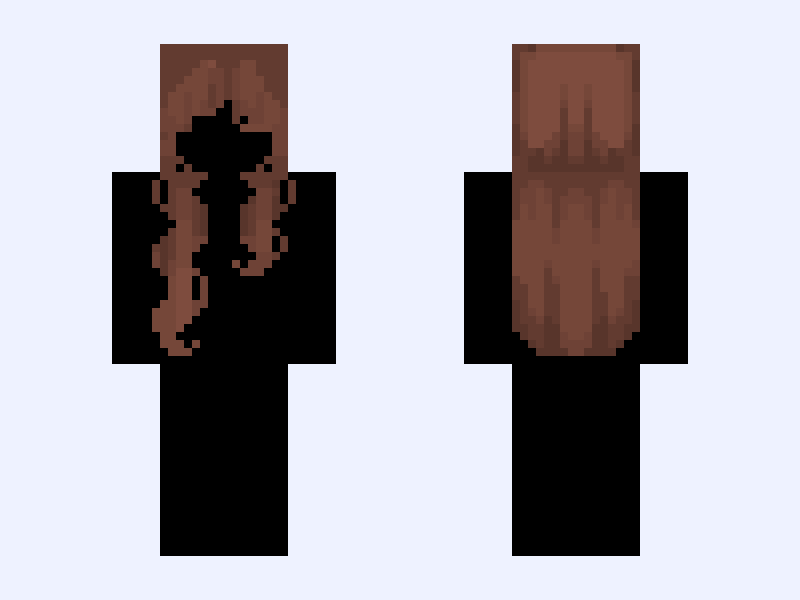
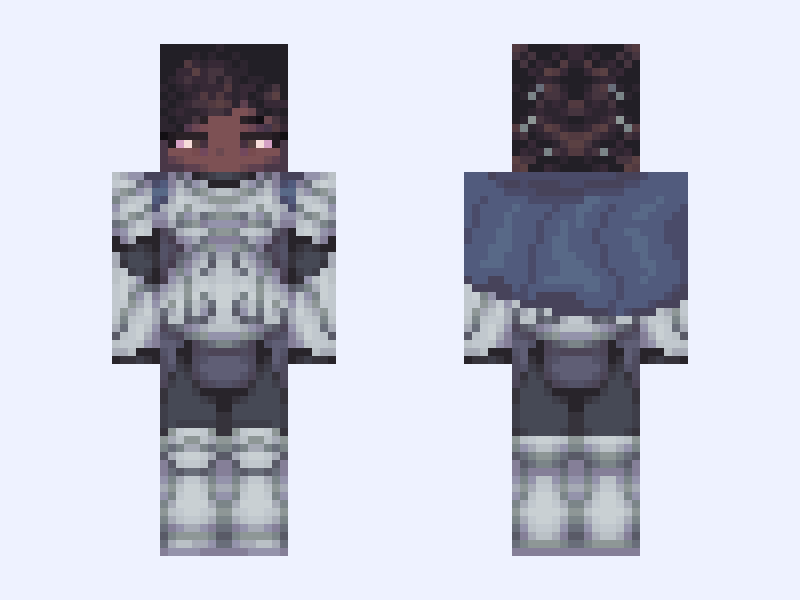
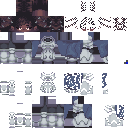
This is the skin file you download: a 128×128 HD PNG texture laid out in the standard Minecraft skin format.
🗡️ - . * + | Knight, Armour, Silver, Cape, Blue, 128x128 | Minecraft Skin
Slim
128×128 HD
44 likes
4 comments
Download Skin
About this skin
+ * . - 🗡️.. - . * + + * . - ⛓️.. - . * + - . * + My entry to @shad0ws_ ‘s contest —> #shad0ws_emojicon I was given the sword emoji 🗡️ so ofc I had to do a knight look Also shh I know the cape looks kinda funky it’s not my forte🤫 Inspiration: https://pin.it/1M99Gf5lG https://pin.it/7L7Ii7csH https://pin.it/3AxgT05HU Song recommendation: Royal Courts (Great Misfortune) by Portraits of Tracy - . * + Like before leaving ads If used give credit Don’t repost or steal Like before download - . * + Cape shading inspo: @Gabzu Everything: @MoonlitStars462 (me) - . * + #Stars128
Skin details
- Model
- Slim (Alex, 3px arms)
- Texture size
- 128×128 HD pixels
- File type
- PNG with transparency
- Likes
- 44
- Comments
- 4
- Added
- September 8, 2026
How to use this skin in Minecraft Java Edition
- Select Download Skin to save the PNG file.
- Open the Minecraft Launcher and go to Skins.
- Choose New Skin and select the Slim player model.
- Browse to the downloaded PNG, then select Save & Use.
How to use this skin in Minecraft Bedrock Edition
- Select Download Skin to save the PNG file.
- Open Minecraft and go to the Dressing Room.
- Under Classic Skins, choose Import, then Choose New Skin.
- Select the PNG and pick the Slim model.