GameModHub Gaming
How to Reset Your Minecraft Skin
Removing a custom skin is not the same as replacing it. Uploading a new file overwrites what you had; resetting returns you to one of the game's own default characters, which is what you want if you are troubleshooting, handing a device to someone else, or simply tired of the skin you picked.
Both editions can do it. Neither makes it particularly easy to find.
Java Edition
Java keeps skins on your Microsoft account, so this is done outside the game.
In the Minecraft Launcher, open the Skins tab. Your uploaded skins are listed there alongside the defaults. Select a default character and apply it, and the custom skin is no longer in use — though it stays in your list, so you can switch back without re-uploading.
The same thing can be done from your account page on minecraft.net, signed in with the same Microsoft account.
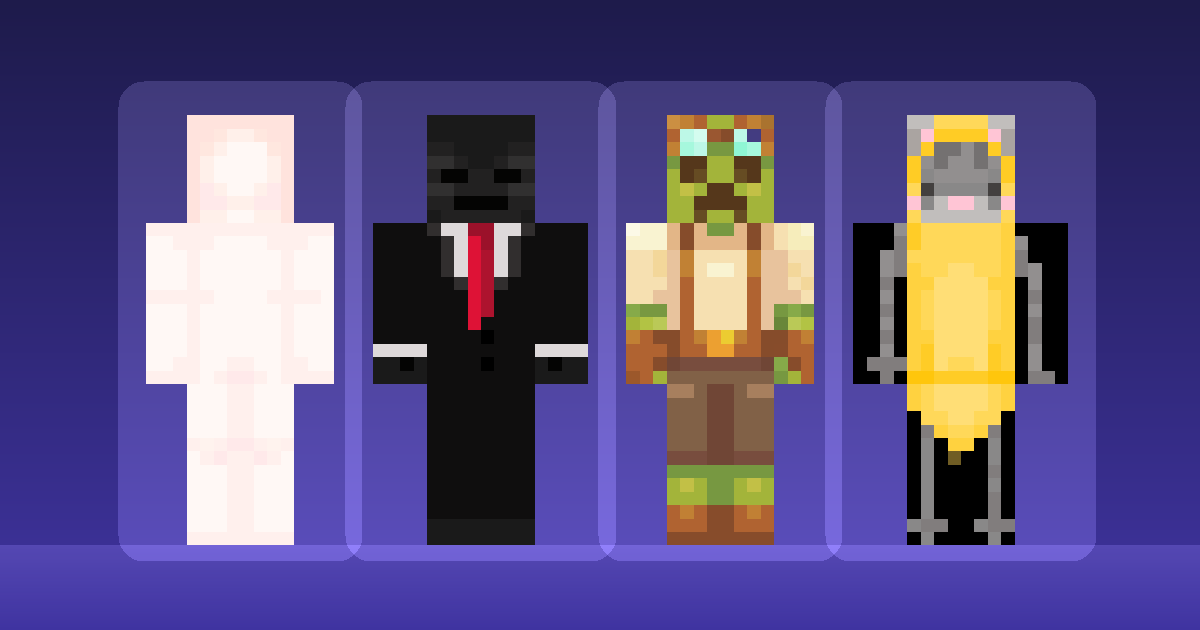
Note that modern Minecraft ships with more than two defaults. Steve and Alex are the familiar pair, but several other default characters were added later, covering both the Classic and Slim models. Any of them counts as "resetting" — there is no single canonical default any more.
As with any skin change, close the game fully and reopen it. A reset applied while the client is running usually will not show until it reconnects.
Bedrock Edition
On Bedrock the whole thing happens in the Dressing Room, reached from the character icon on the main menu.
Open it and you will see your current character. Move to the Classic Skins section — the same place custom PNG skins are imported — and the default characters are available there. Select one and confirm.
If you have been using the character creator rather than a classic skin, the reset is different: you are not removing a file, you are changing a character. Either pick one of the supplied default characters, or create a new character and switch to it.
Imported classic skins stay in your owned list after a reset, so nothing is lost by switching back to a default.
When resetting is the right diagnostic
Resetting is genuinely useful when something is wrong and you cannot tell whether the problem is your file or the platform.
If a skin renders with odd arms, black patches or a visible seam, switching to a default answers one question immediately: if the default renders correctly, the game is fine and the problem is in your PNG. The troubleshooting guide covers what each symptom means.
If other players still see your old skin after a reset, that is a caching delay rather than a failure — servers and other clients hold on to the last skin they loaded, sometimes for a while.
When you are ready to pick something new, the skins library is free and requires no account, and the upload guide covers applying it on each edition.